Tired of the same default ringtones that everyone else has? Making a custom ringtone from your favorite song is easier than you think — and you don't need any apps or software to do it. All you need is the song file and a web browser.
In this guide, we'll walk through how to create a perfect custom ringtone in under a minute using OnlineAudioEdit — completely free.
What Makes a Good Ringtone?
Before you start editing, here are some tips for choosing the perfect ringtone section:
- Length: Aim for 20-30 seconds. Most phones loop ringtones, so you don't need a long clip. Too short (under 10 seconds) and you won't hear it ring; too long (over 40 seconds) and callers might give up before you answer.
- Start strong: Choose a section that starts with an instantly recognizable hook — the chorus, a signature riff, or a distinctive melody. You want to know immediately what song is playing.
- Avoid fade-ins: A ringtone needs to be noticeable from the first second. Sections that start quietly and gradually build up are bad ringtone material because you might not hear the phone at first.
- Volume matters: Pick a section that's naturally loud and energetic. If the section is too quiet, you can always boost the volume in the editor.
Step 1: Import Your Song
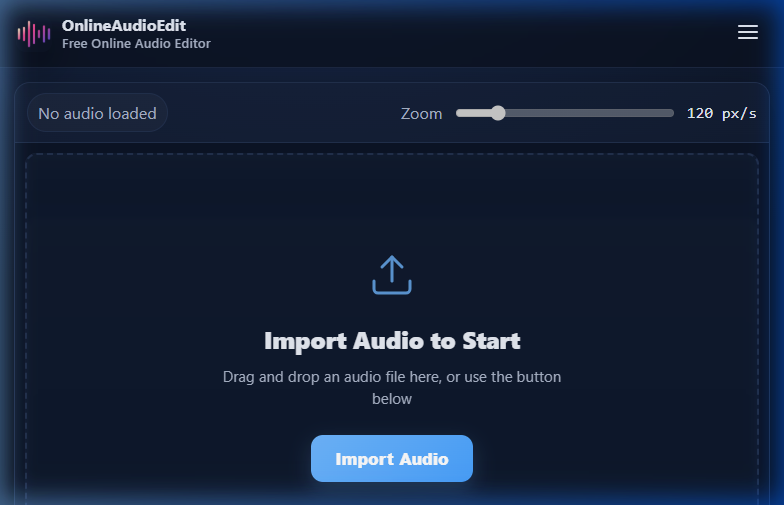
Open the OnlineAudioEdit editor and import your music file. Drag and drop the file directly onto the waveform area, or click the Import button. The editor supports MP3, WAV, M4A, AAC, OGG, FLAC, and many more formats.
Your song will appear as a visual waveform showing the entire track from start to finish.
Step 2: Find Your Favorite Part
Press Play and listen through the song. Watch the playhead move across the waveform — you'll quickly learn to associate visual patterns with specific parts of the song. The chorus is usually the tallest, most energetic section of the waveform.
Use the zoom slider to zoom in closer to the waveform for precise selection. At higher zoom levels, you can identify the exact beat where the chorus starts or where a guitar riff begins.
Step 3: Select and Trim
Click and drag on the waveform to select your 20-30 second ringtone section. The selection duration is shown in the "Sel" indicator in the sidebar — aim for about 20-30 seconds.
Once you're happy with your selection, click Trim in the Edit panel. Everything outside your selection is removed, and you're left with just your ringtone clip.
Step 4: Polish Your Ringtone (Optional)
Before exporting, consider these optional enhancements:
- Volume Boost: If the clip is too quiet to hear as a ringtone, use the Volume slider to increase it. 150-200% is usually enough without introducing distortion.
- Voice Effects: Want a fun, unique ringtone? Try applying the Chipmunk, Robot, or Echo effect for a creative twist on your favorite song.
- Speed Change: Adjust the playback speed to 1.1× or 1.2× for a slightly faster, more energetic version, or slow it down to 0.8× for a more relaxed vibe.
Step 5: Export as MP3
Click Export and choose MP3 format. MP3 is the universal ringtone format supported by virtually all phones (Android and most iPhone models). The file will download to your device.
Setting Your Ringtone
On Android
- Transfer the MP3 file to your phone (or create the ringtone directly in your phone's browser)
- Go to Settings → Sound → Phone ringtone
- Tap "Add ringtone" or browse to the MP3 file
- Select your custom ringtone
On iPhone
iPhones use the M4R format for ringtones. After exporting your MP3 from OnlineAudioEdit, you'll need to:
- Import the MP3 into iTunes/Finder on your Mac or PC
- Convert it to AAC format in iTunes (File → Convert → Create AAC Version)
- Rename the file extension from .m4a to .m4r
- Drag the .m4r file into iTunes and sync to your iPhone
Alternatively, use the GarageBand app on your iPhone to import the MP3 and set it as a ringtone directly.
Ringtone Ideas
- Song choruses: The most popular choice — instantly recognizable and energetic.
- Guitar riffs: Classic rock riffs make iconic ringtones.
- Sound effects: Download a fun sound from our Trending Sounds page and set it as your ringtone.
- Voice clips: Record yourself or a friend saying something funny, trim it, and use it as a custom alert tone.
- Game/movie quotes: Iconic lines from your favorite movies or video games.
Ready to stand out? Head to the OnlineAudioEdit editor and create your perfect ringtone in less than a minute.