You just finished recording that perfect podcast episode, nailed the voiceover for your YouTube video, or captured an important interview on your phone. You press play to listen back and... there it is. That constant, annoying hiss in the background. The low hum of your air conditioner. The buzz from your laptop fan. Sound familiar?
Until now, cleaning up that kind of noise meant either paying for expensive desktop software or uploading your private recordings to some random website. Today, we are changing that. Say hello to AI Noise Reduction — now built right into OnlineAudioEdit, completely free, and running entirely in your browser.
What Does AI Noise Reduction Actually Do?
Think of it like this: imagine you're in a noisy coffee shop, trying to listen to a friend across the table. Your brain naturally "tunes out" the background chatter and focuses on their voice. Our AI Noise Reduction does something remarkably similar for your audio files.
It listens to a small sample of the noise in your recording — the hiss, the hum, the buzz — and learns exactly what that noise "sounds like." Then it goes through your entire recording, frame by frame, and carefully turns down just those unwanted sounds while keeping your voice, music, or whatever you actually want to hear perfectly intact.
The result? Dramatically cleaner audio that sounds like you recorded in a professional studio. No more distracting background noise ruining your content.
Who Is This For?
Honestly? Anyone who records audio in the real world (so... everyone). Here are some examples:
- Podcasters — record from home without worrying about your AC or fridge being picked up by the mic
- YouTubers & content creators — clean up voiceovers recorded on a budget mic in a bedroom
- Students & teachers — make lecture recordings and presentations clearer for your audience
- Musicians — remove room noise from vocal takes or acoustic instrument recordings
- Remote workers — clean up recorded meetings or voice memos that picked up office noise
- Journalists & interviewers — rescue field recordings from noisy environments
How to Use AI Noise Reduction (Step by Step)
The whole process takes about 30 seconds. Here's how:
Step 1: Import Your Audio
Head to the OnlineAudioEdit editor and import your file. You can drag and drop it directly onto the waveform area, or click the Import button. We support MP3, WAV, M4A, FLAC, OGG, and more.
Step 2: Click "AI Noise Reduce"
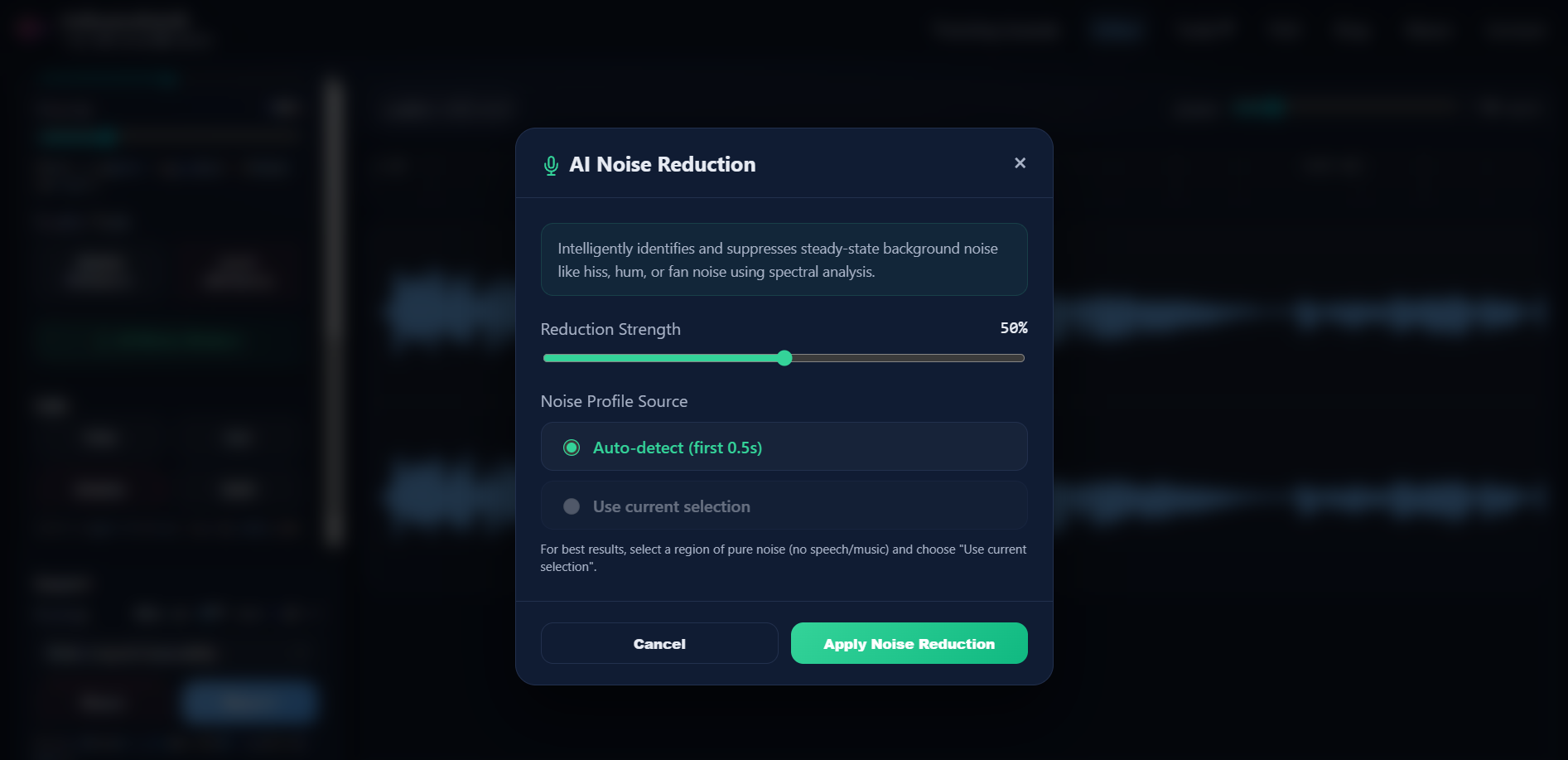
Look in the left sidebar, under the Quality Tools section. You'll see a green button labeled AI Noise Reduce. Click it to open the noise reduction settings panel.
Step 3: Set the Strength
Use the Reduction Strength slider to control how much noise gets removed:
- Low (20-30%) — gentle cleanup, barely touches your audio. Good for recordings that are already decent but have a slight hiss.
- Medium (40-60%) — the sweet spot for most recordings. Removes noticeable hum and hiss while keeping everything natural sounding.
- High (70-100%) — aggressive removal for really noisy recordings. Great for rescuing audio from challenging environments, though very high settings can sometimes make voices sound slightly "processed."
Our recommendation: Start at 50% and adjust from there. You can always undo and try again.
Step 4: Choose Your Noise Source (Optional but Powerful)
This is where the magic happens. You have two options:
- Auto-detect — the tool automatically learns the noise pattern from the very beginning of your recording. Works great if your file starts with a moment of "silence" (where only the background noise is audible).
- Use current selection — if you can find a section in your recording where only the noise is present (nobody talking, no music), select that region on the waveform first, then choose this option. This gives the tool a much better "fingerprint" of the noise, leading to cleaner results.
Pro tip: Before you start recording your next podcast or voiceover, let the mic run for 2–3 seconds of pure silence at the beginning. This gives the AI a perfect noise sample to work with later!
Step 5: Click "Apply" and You're Done
Hit the green Apply Noise Reduction button. You'll see a progress indicator while the tool works its magic — typically 5 to 15 seconds depending on how long your file is. Once it's done, play back your audio and hear the difference. Want to re-do it with different settings? Just hit Reset and try again.
Step 6: Export Your Clean Audio
Happy with the result? Export it as WAV or MP3 and you're ready to publish, share, or use it however you want.
What Kind of Noise Can It Handle?
Our AI Noise Reduction is specifically designed for steady-state background noise — the kind that stays constant throughout your recording. Here's what it handles brilliantly:
- ✅ Air conditioner and HVAC hum
- ✅ Computer fan buzz
- ✅ Microphone hiss and preamp noise
- ✅ Electrical hum (50/60 Hz ground loop)
- ✅ Room tone and ambient noise
- ✅ Refrigerator and appliance noise
Keep in mind, it's not designed to remove sudden sounds like a dog barking, a door slamming, or someone coughing. For those, the Cut tool or Delete tool are your best friends.
Your Audio Never Leaves Your Computer
Privacy is a big deal — especially when you're working with private recordings, confidential interviews, or unreleased music. Here's the thing that makes our tool different: everything happens right in your browser. Your audio files are never uploaded to a server. Never. The AI runs entirely on your device, which means:
- 🔒 No uploads — your files stay on your machine
- 🚫 No accounts or signups needed
- 💰 No hidden fees, premium tiers, or watermarks
- ⚡ No internet needed after the page loads
Combine with Other Tools for the Best Results
AI Noise Reduction works beautifully alongside the other quality tools in OnlineAudioEdit. Here's a workflow that many podcasters and creators swear by:
- Import your raw recording
- Trim off the dead air at the start and end
- AI Noise Reduce to clean up background noise
- Studio Enhance to boost clarity and even out the volume
- Export as MP3 with your metadata attached
That's the entire professional cleanup workflow — done for free, in your browser, in under a minute.
Frequently Asked Questions
Is it really free?
Yes, 100% free. No trials, no watermarks, no "premium" unlock. AI Noise Reduction is available to everyone right now.
Do I need to install anything?
Nope. Everything runs in your web browser. Just open OnlineAudioEdit, upload your file, and click the button. Works on Chrome, Firefox, Edge, Safari, and most modern browsers.
How long does it take to process?
Most audio files are processed in 5 to 15 seconds. Longer files (10+ minutes) may take up to 30 seconds. A progress indicator keeps you updated the entire time.
Will it remove voices or music?
No — the tool specifically targets steady-state noise (constant hiss, hum, buzz). It's designed to preserve voices, instruments, and all the audio you actually want to keep.
What file formats are supported?
MP3, WAV, M4A, AAC, OGG, OPUS, FLAC, WEBM, and AIFF. If your browser can play it, we can process it.
Can I undo the noise reduction?
Yes! Just click the Reset button to go back to your original audio. Or, if you want to try different strength settings, simply reset and apply again.
Background noise is the #1 thing that makes audio sound "unprofessional." With AI Noise Reduction, fixing it takes seconds — not hours. Give it a try on your next recording and hear the difference yourself.